Create WABA via Embedded Sign-up
Quickly create a WhatsApp Business API account
Prerequisites
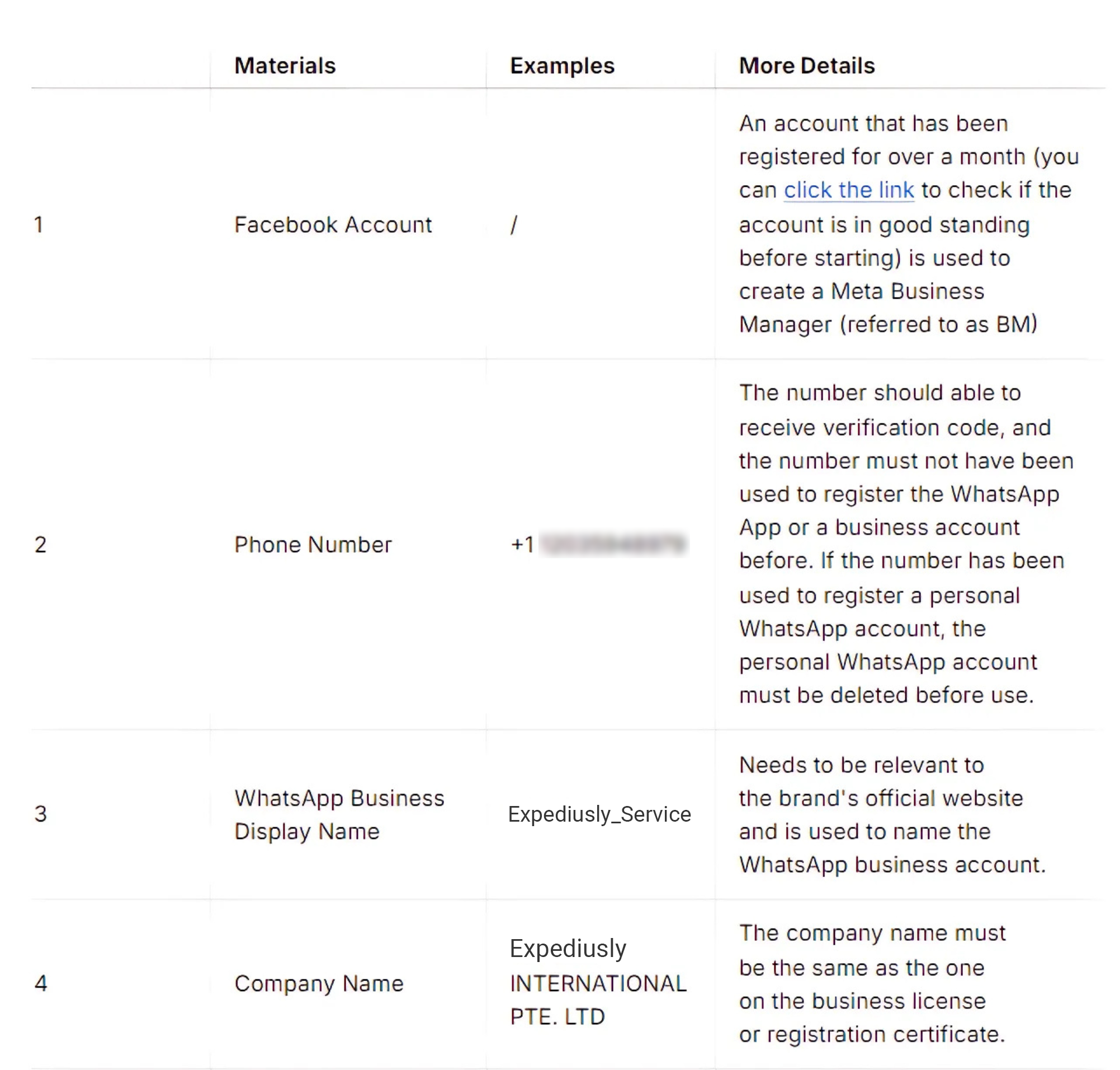
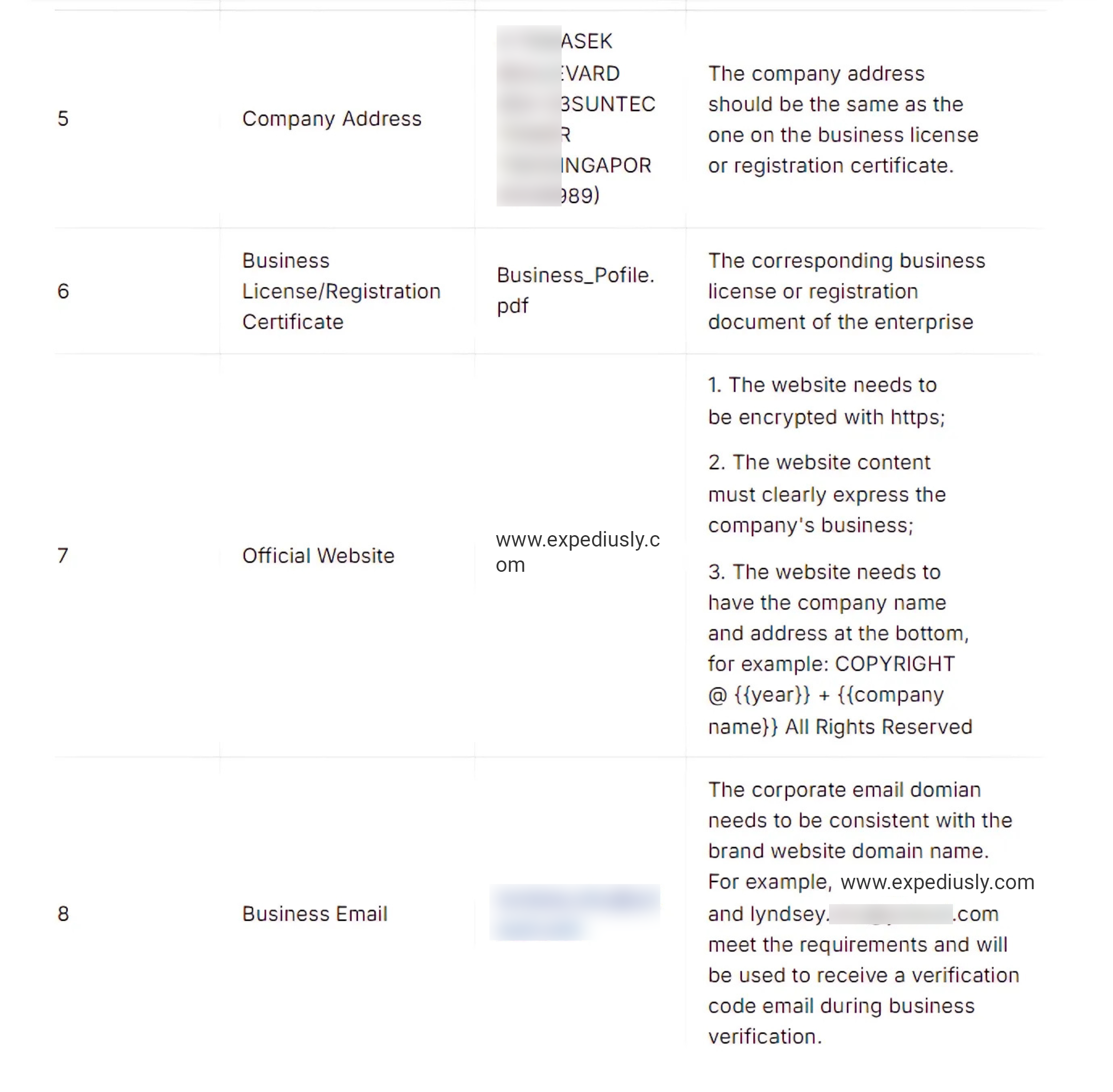
-
A Facebook account
-
A phone number
-
The phone number must be able to receive voice calls or SMS
-
The number must not have been registered with WhatsApp App or Business account before
-
If you already have a BM account (Facebook Business Manager) and wish to create a WhatsApp API account under your existing BM account, you can log in with the BM account administrator's Facebook account at step 2 of the process, and select the existing BM account at step 4.
Create a New Account
After completing the Expediusly account registration, you can create a WhatsApp account on the homepage.
For the text tutorial, please refer to the video tutorial: https://www.bilibili.com/video/BV1Aa4y1g7di/
Step 1: Click the Create Button
Visit the Getting started page and click "Connect my WhatsApp account".
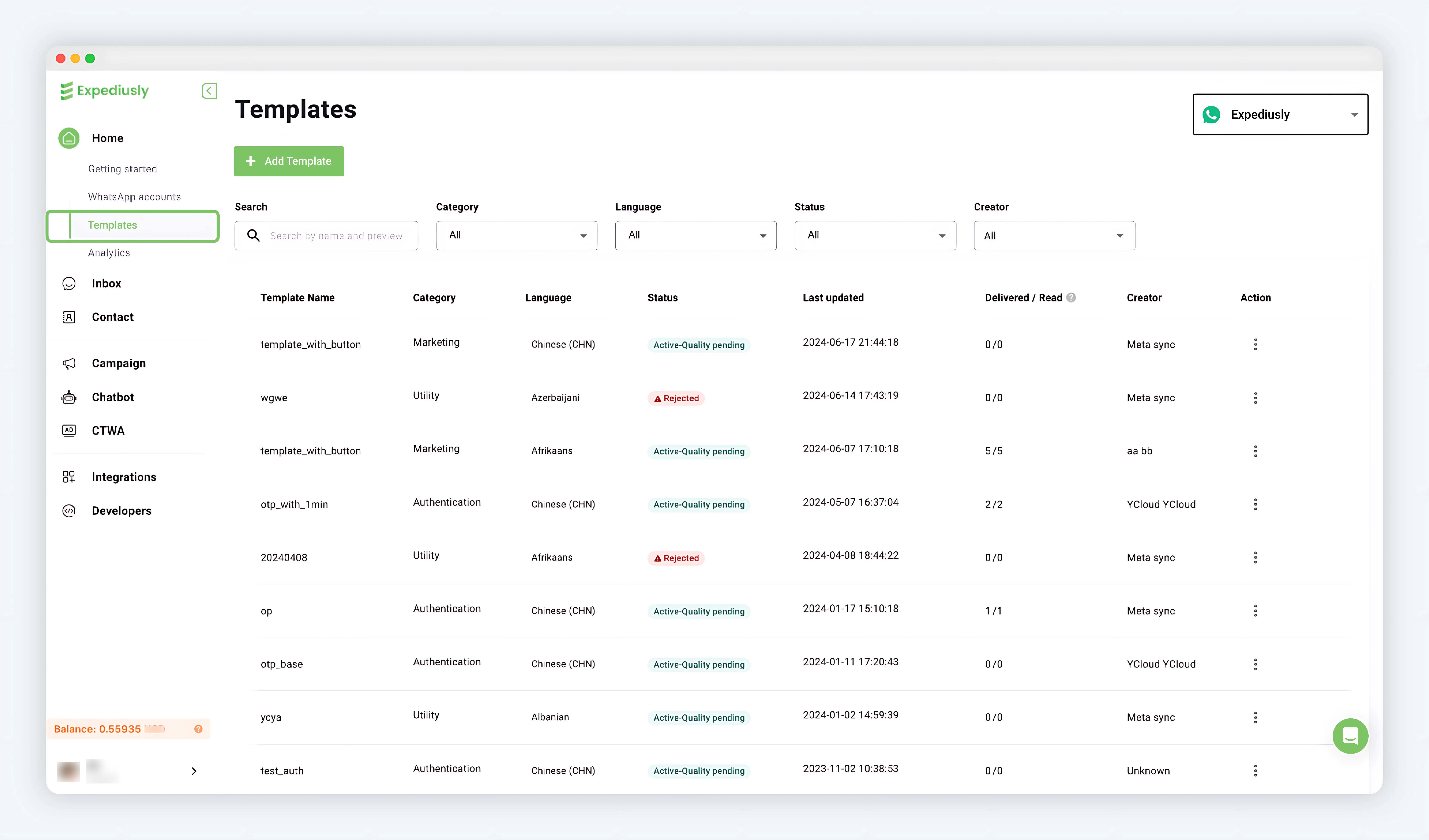
Step 2: Log in to Facebook
After clicking login, a Facebook authorization popup will appear. Log in with the Facebook account you prepared. If the account is incorrect, you can click "Log in another account" to switch. Confirm the account is correct and click "Continue" for the next step.
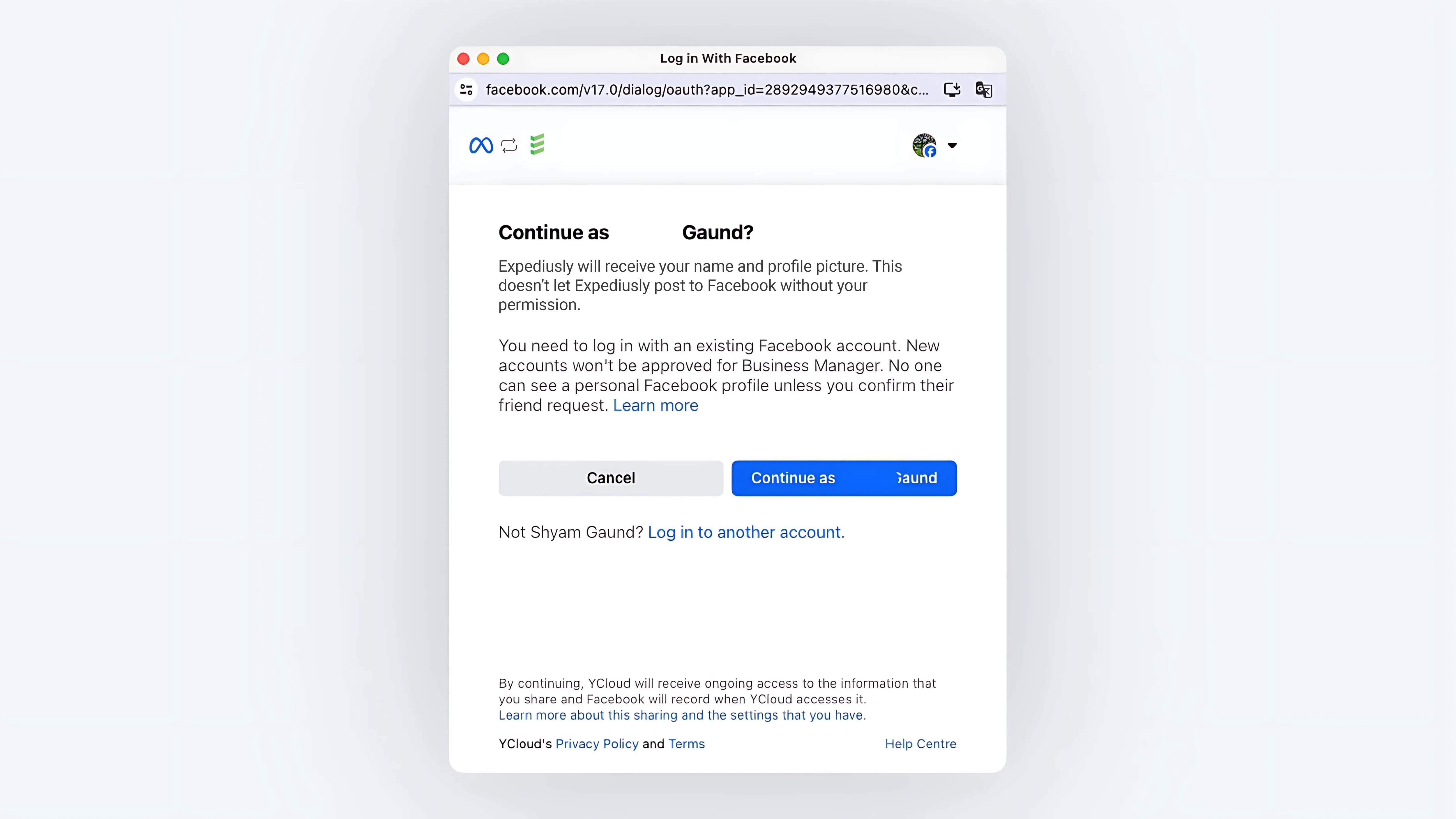
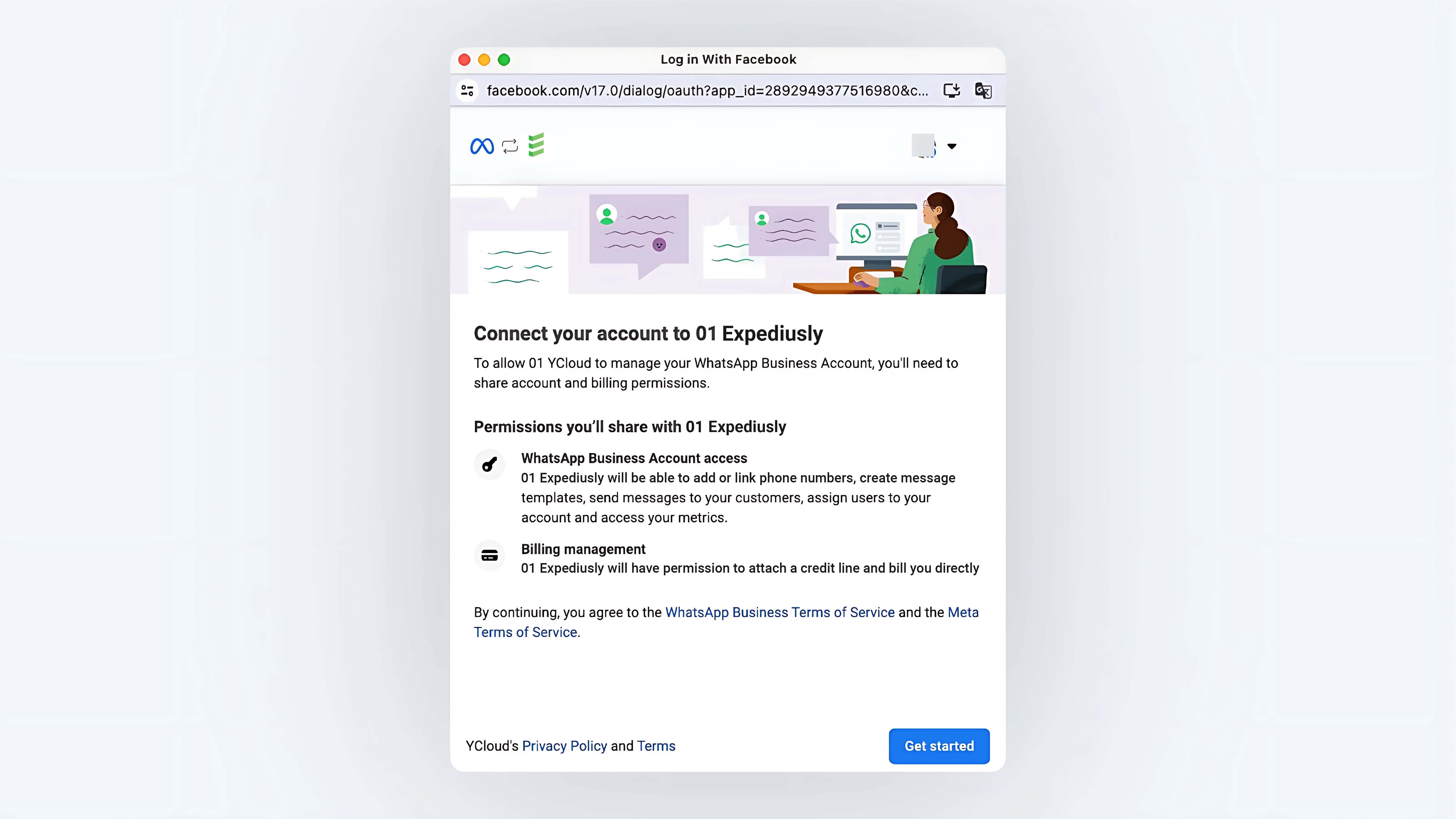
Step 3: Confirm the Agreement
Click "Get started" to continue creating.
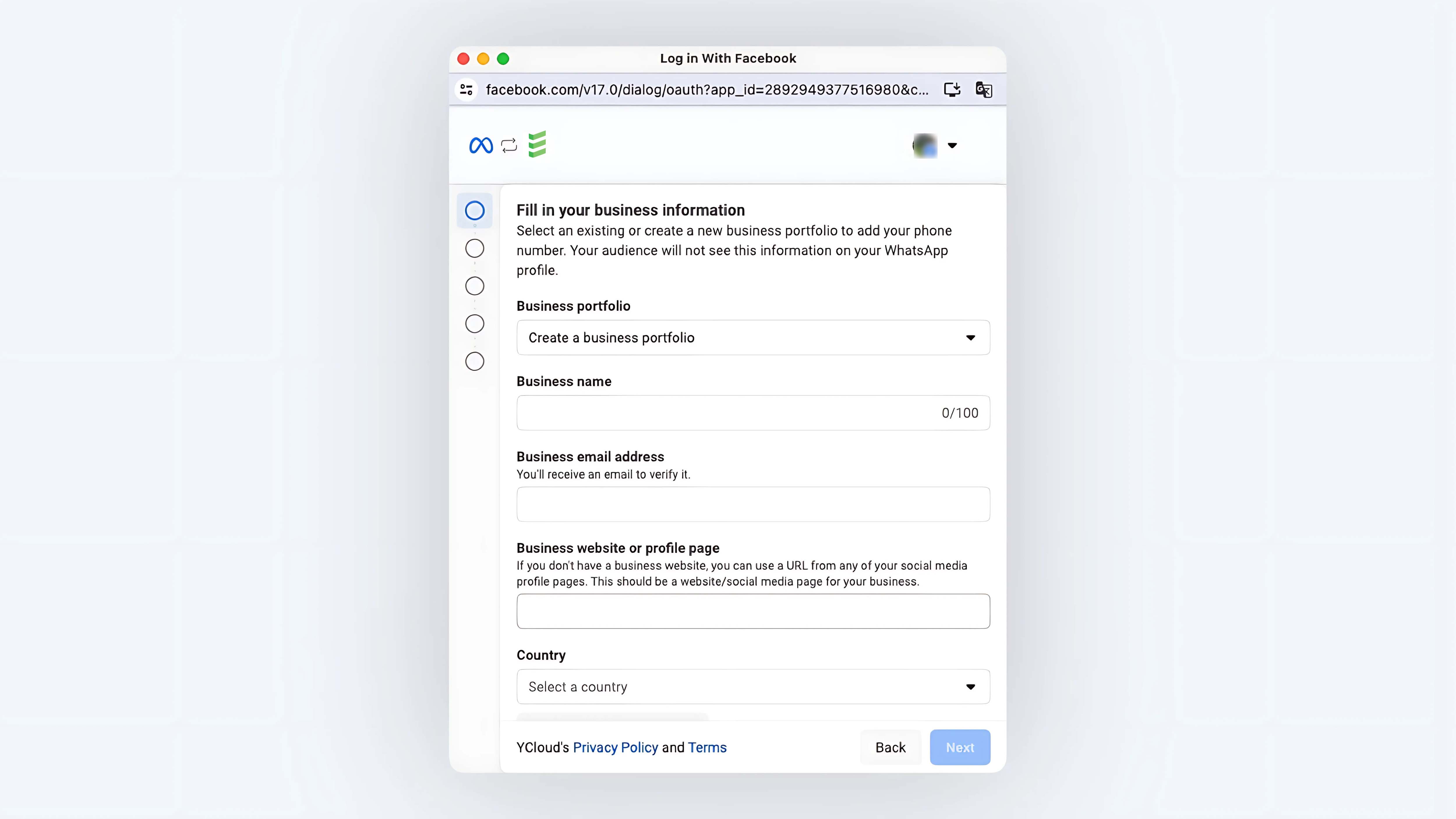
Step 4: Create a BM Account
Enter your company's information:
-
Business name: The company name which exactly same with business license. Please do not enter company abbreviation or brand name.
-
Business email address: It is recommended to use an email address that matches your website domain.
-
Business website or profile page: The company's URL. Note that the company's URL must be https.
-
Country: The country where the company operates. Make sure to select the country where your company is registered for certification. For example, if you are submitting an Indonesian business license for corporate certification, select Indonesia.
If you already have a BM account, you can select it in the Business portfolio option.
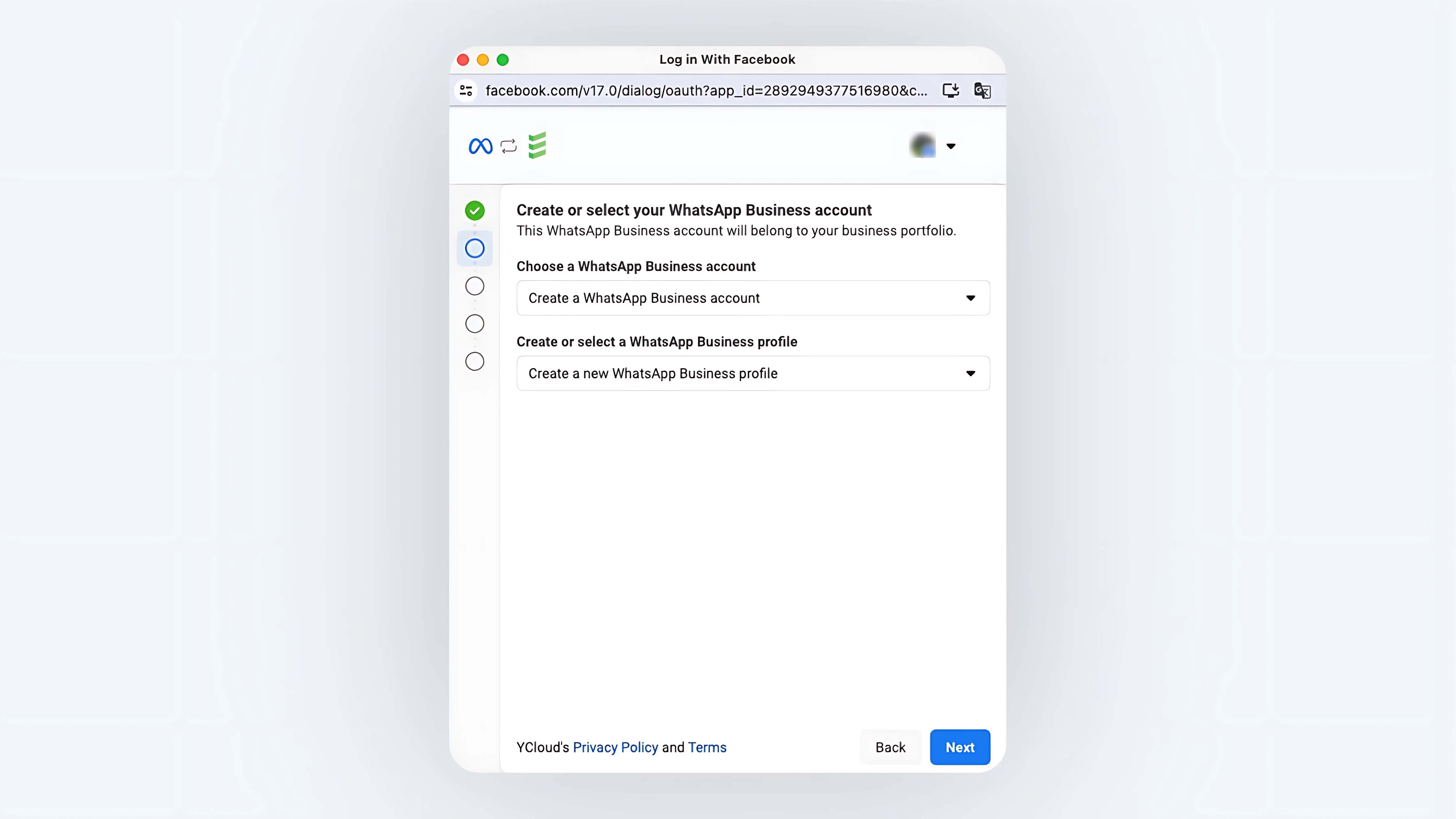
Step 5: Create a WABA
Select/create a new WABA. If you already have a WABA, you can select it from the dropdown, otherwise, choose to create one.
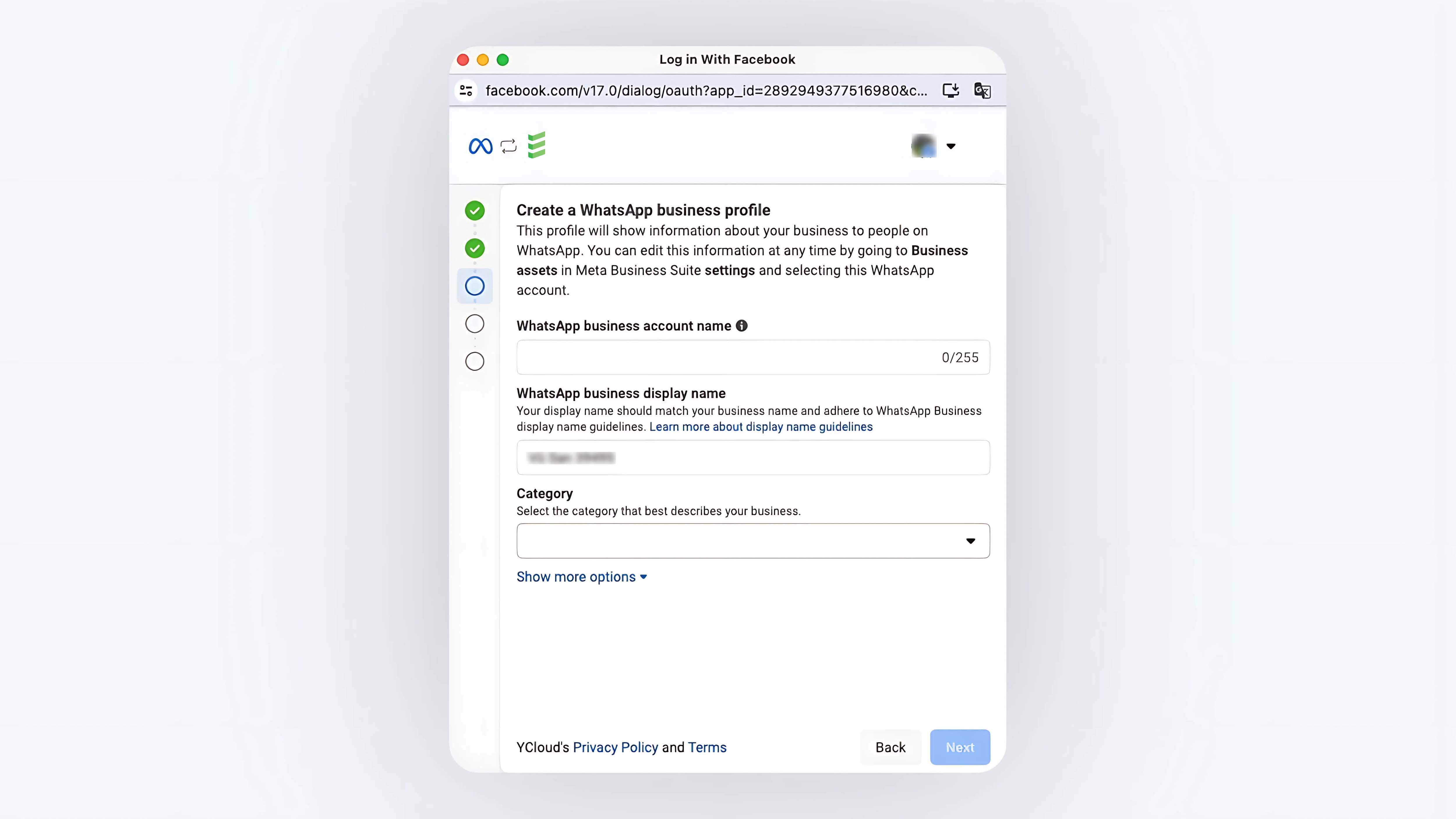
Step 6: Set WABA and Number Information
-
WhatsApp business account name: The name of the WABA. This is for internal business differentiation and will not be visible to your audience on your WhatsApp account profile.
-
WhatsApp business display name: The name of the number. The display name will show to your customers and should be related to your company or brand name. Click to view Display Name Guidelines.
-
Category: Industry
Step 7: Connect the Phone Number
Enter the phone number for registering the WhatsApp API account and select the method to receive the verification code:
-
SMS
-
Voice call
After entering, click "Next".
Tip: For Mainland China (+86), it is recommended to use a voice call to receive the verification code.
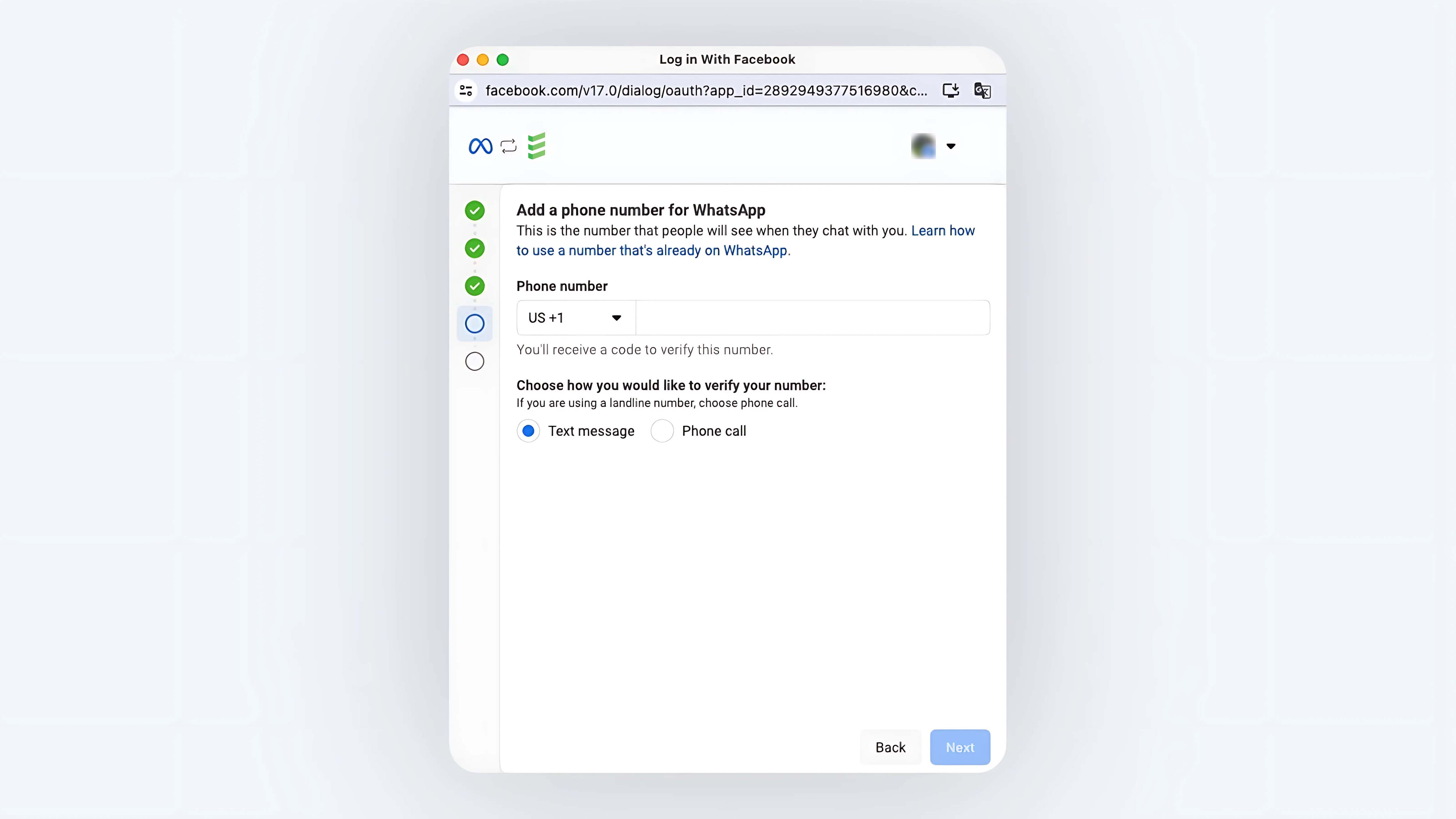
Step 8: Verification Code Check
Enter the received verification code and click "Next"
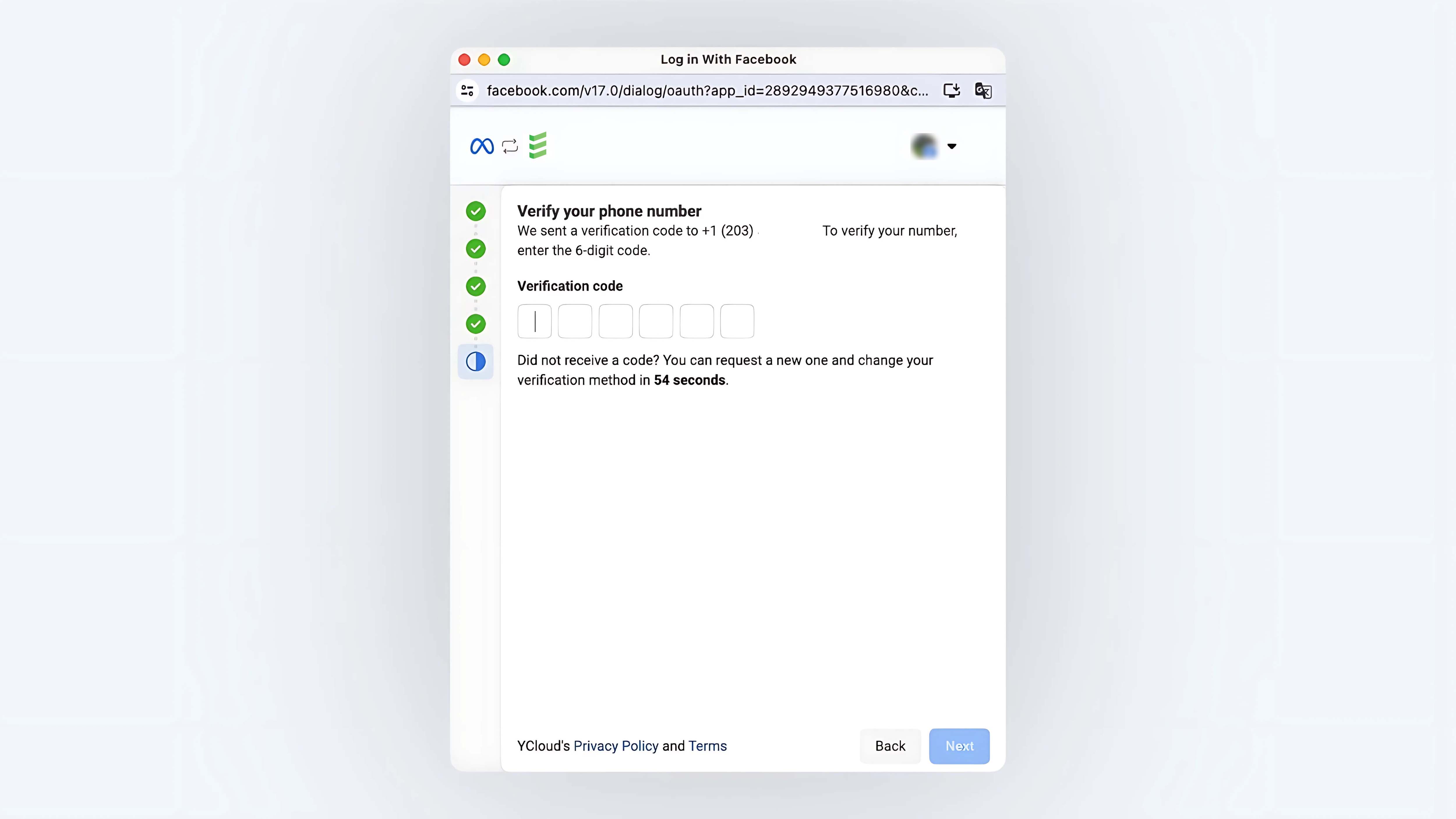
Step 9: Secondary Confirmation
Confirm your creation content, and click "Continue" if everything is correct.
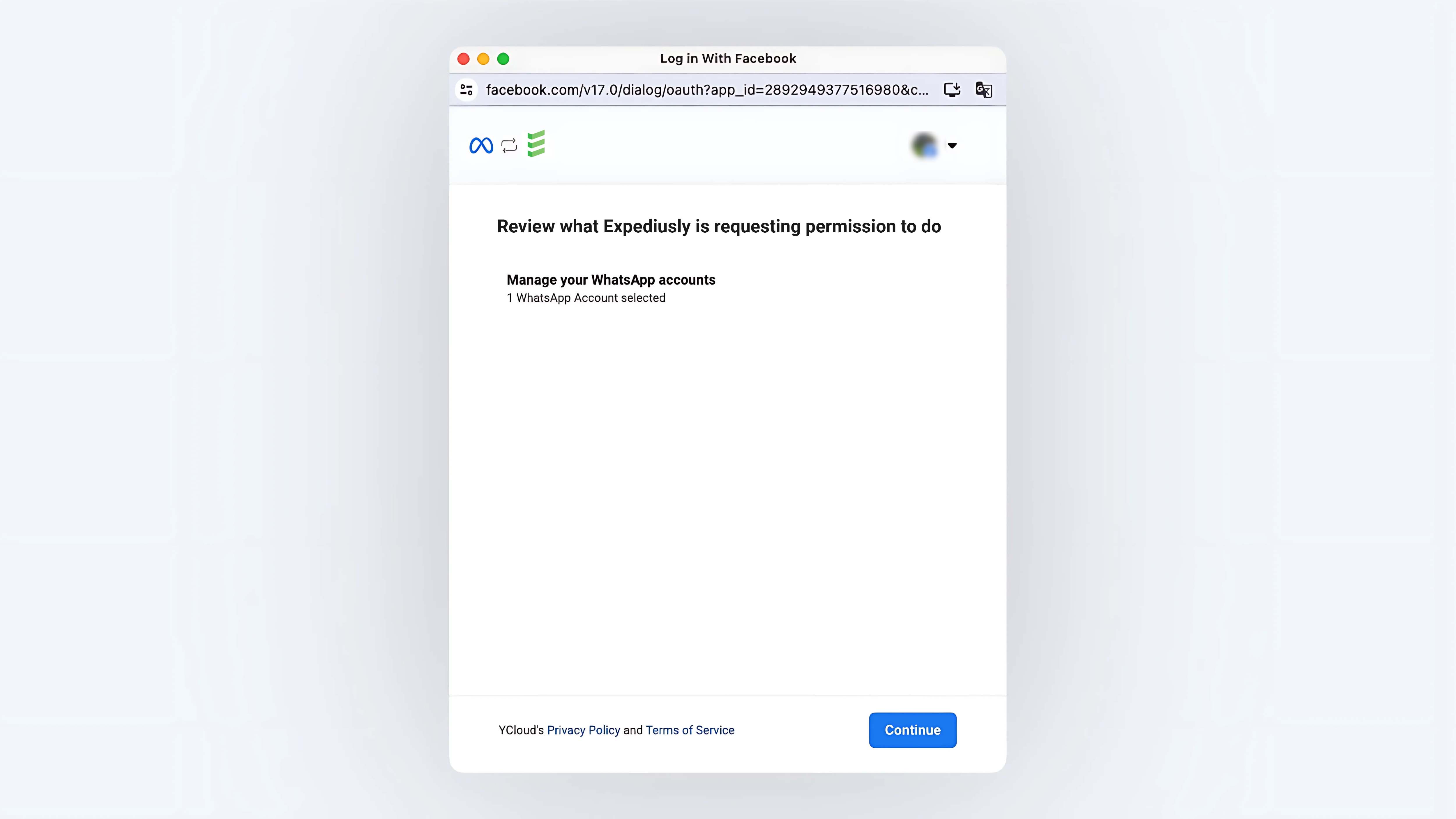
Step 10: Creation Successful
A prompt indicating successful creation will appear. Be sure to click the "Finish" button at the bottom of the popup.
image
Step 11: Connected Successful
When the popup closes, Expediusly will proceed with the connecting. After phone number connected successfully, the page will indicate "Connected".
If the binding fails, you can contact online customer service for support.
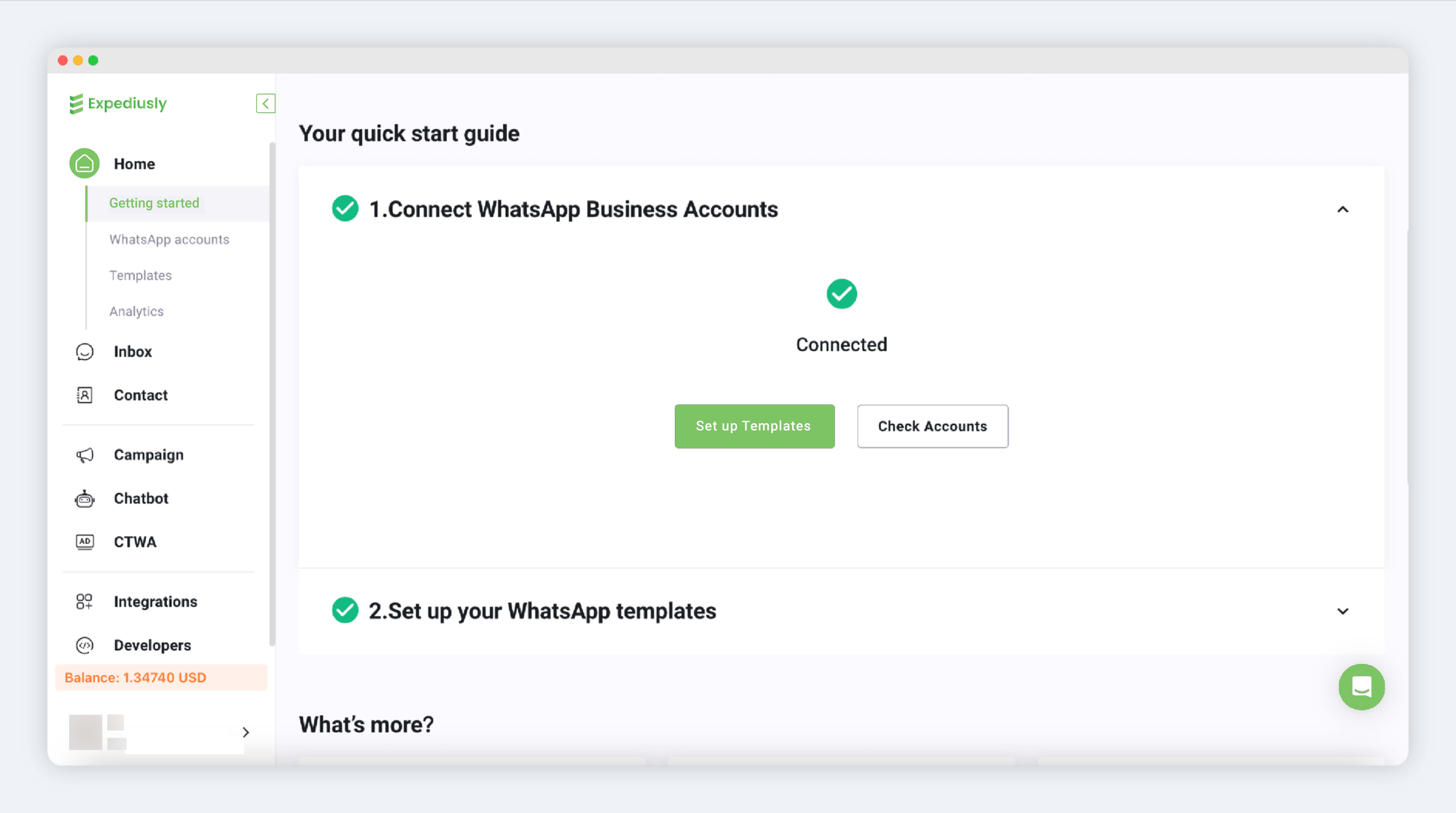
WABA connected
Further Reading
After connecting the number, it is recommended to perform the following actions:
Phone Number Profile Settings
Business Verification
Frequently Asked Questions
Question 1) Can numbers from Mainland China (+86) be registered?
Answer) Yes, as long as the phone numbers can receive verification codes successfully, they can be registered.
Question 2) Network errors such as "Network error" occur during the creation process
Answer) It is recommended to go back one step, or close the popup and restart the process. Check if there are already created WABAs in the BM and WABA dropdowns.
Question 3) The number binding prompts that this number has already been registered with a WhatsApp account?
Answer)**
Carefully read the prompt, which may indicate two situations:
-
This number has already been registered with WhatsApp or WhatsApp Business . In this case, you need to delete the original account and wait for some time before you can use it to register for a WhatsApp API account. Since deleting the account will result in the loss of historical chat records, we recommend you change to a new number for registration.
-
This number has already been registered with a WhatsApp API account and is under your current BM account. In this case, the prompt will guide you through the migration process, requiring you to turn off the two-step verification for this number. Please follow the instructions to complete the migration. For detailed procedures, please refer to the WhatsApp API migration documentation.
Question 4) What if I can't receive the verification code?
Answer) In addition to SMS, you can try using voice to receive it. For Mainland China (+86) numbers, it is suitable to use voice to receive it. If multiple requests fail, it is recommended to change the number for registration.