Number Migration
Number migration refers to the process of transferring a WhatsApp API number between WhatsApp Business Accounts (WABA) while retaining its display name, quality rating, template message limits, Official Business Account status, and approved high-quality templates.
Typically, number migration will be happened when a customer wants to transfer their WhatsApp API number from one solution partner to another.
For example: If you have already registered a WhatsApp API account with another service provider before using Expediusly, you can consider migrating the number to a newly created WABA on Expediusly to continue using it.
Migration Preparation
-
Sign-up an Expediusly account.
-
Turn off two-step verification for the number.
Notes
-
The number being migrated must have passed the display name review and not be in the process of being modified.
-
Historical chat records will not be migrated. Please back up the records with your original service provider.
-
The number's quality, green tick, configuration, and other attributes will not change after migration.
-
All approved medium/high-quality templates under the WABA will be synchronized. Low-quality or unusable templates cannot be synchronized. The quality rating of the templates will start from scratch after migration.
Migration Process
Step 1: Turn Off Two-Step Verification
Log in to the BM Account, Click WhatsApp account > Phone number, and turn off two-step verification. See below for more detailed steps.
Tip: If you did not register the original number yourself, please contact the registrant or administrator to turn it off.
Step 1.1: Enter the WABA Management Page
Visit the Business Management Page, which needs to log in with the administrator's Facebook account before.
Select the WABA to which the number belongs > Settings > WhatsApp manager.
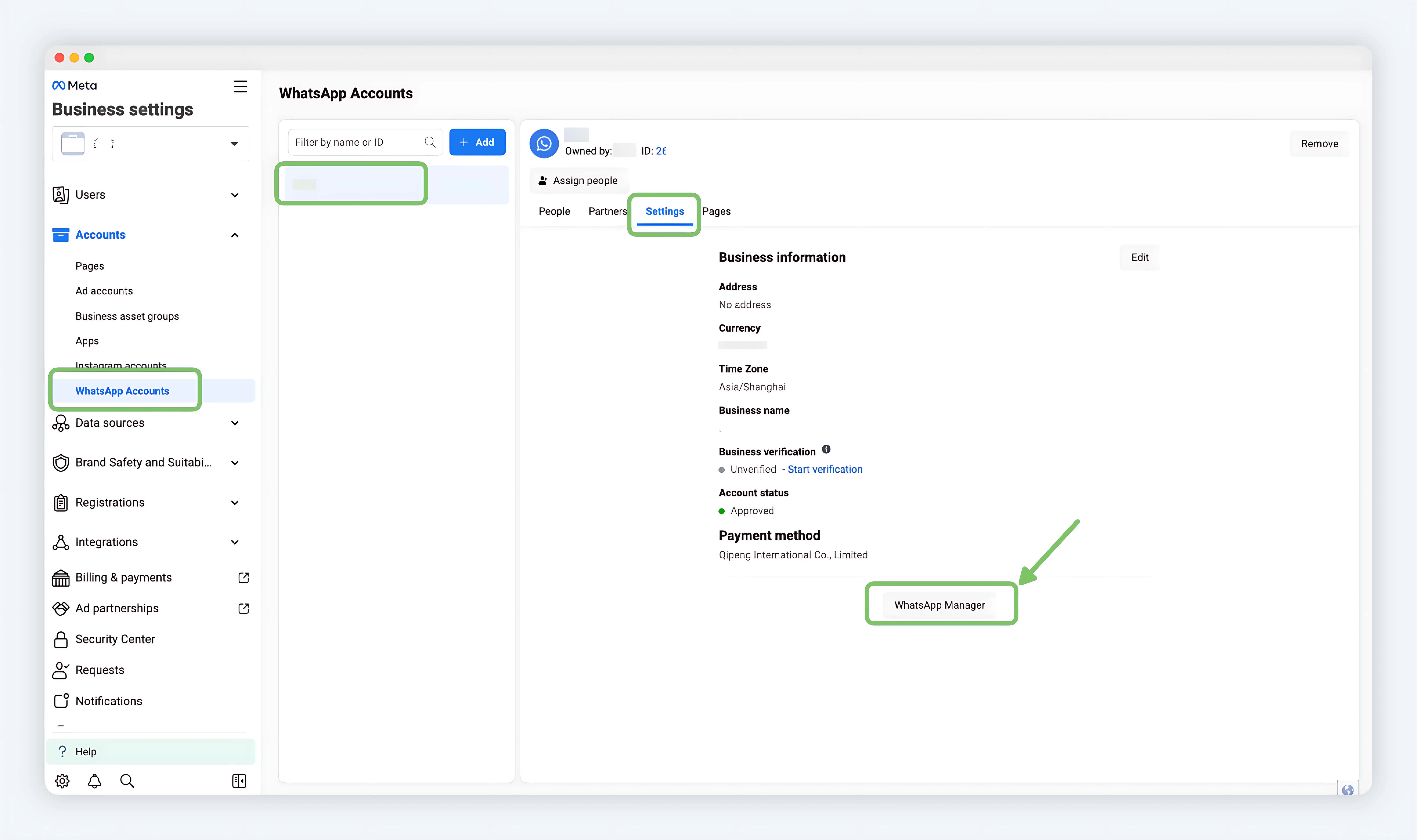
Business Manager settings
Step 1.2: Enter the Phone Number Management Page
Click on the Phone numbers in the navigation bar, select the number to be migrated, and click the settings icon for the number.
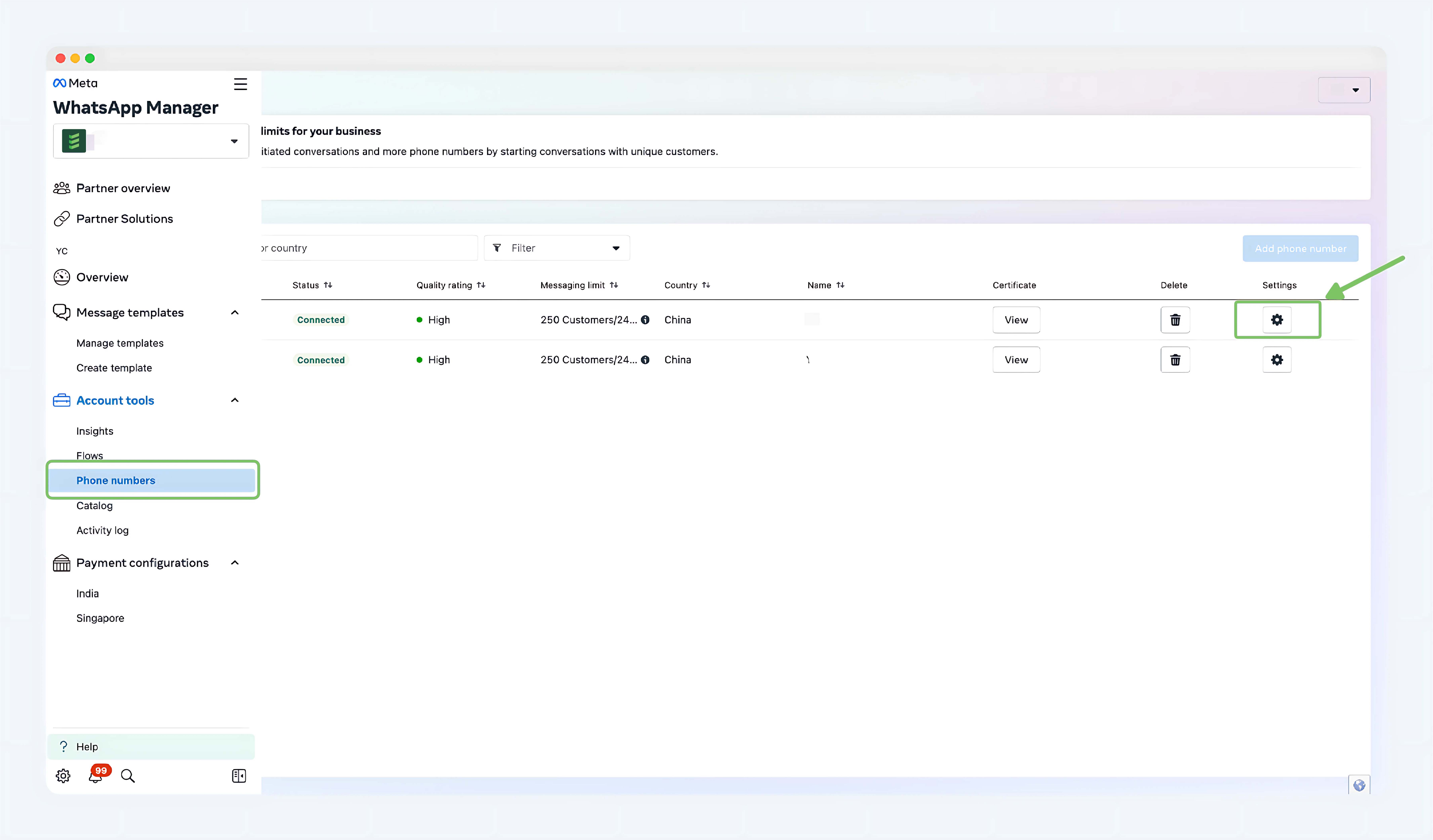
WABA settings
Step 1.3: Turn Off Two-Step Verification
In the number management page, find Two-step verification and click Turn off two-step verification.
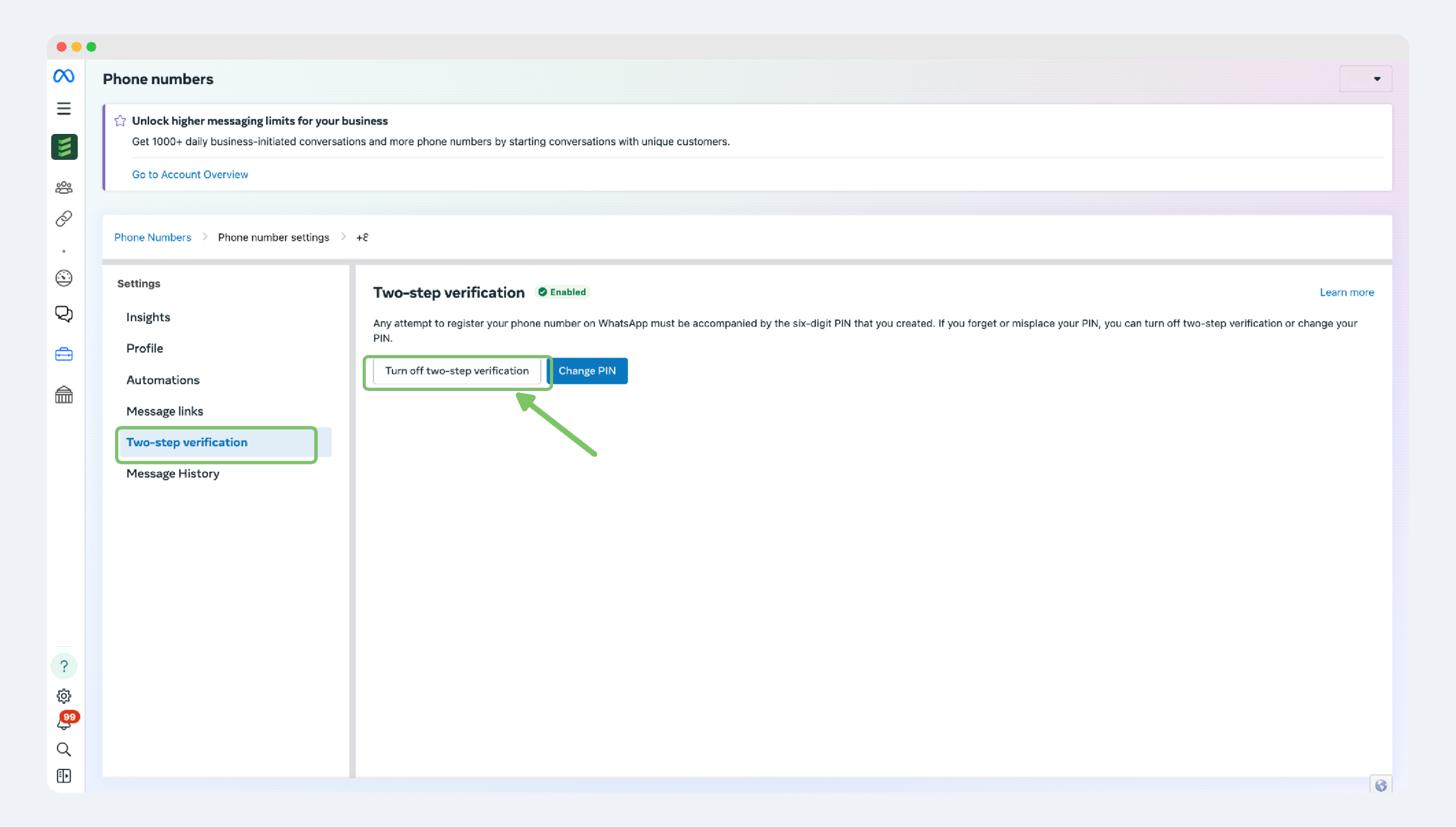
Phone number settings
Step 2: Embedded Sign-up
After completing the above steps, you can proceed with the number migration process.
Step 2.1: Log in to Expediusly and Start Embedded Registration
Visit the Getting started page and click Connect my WhatsApp account.
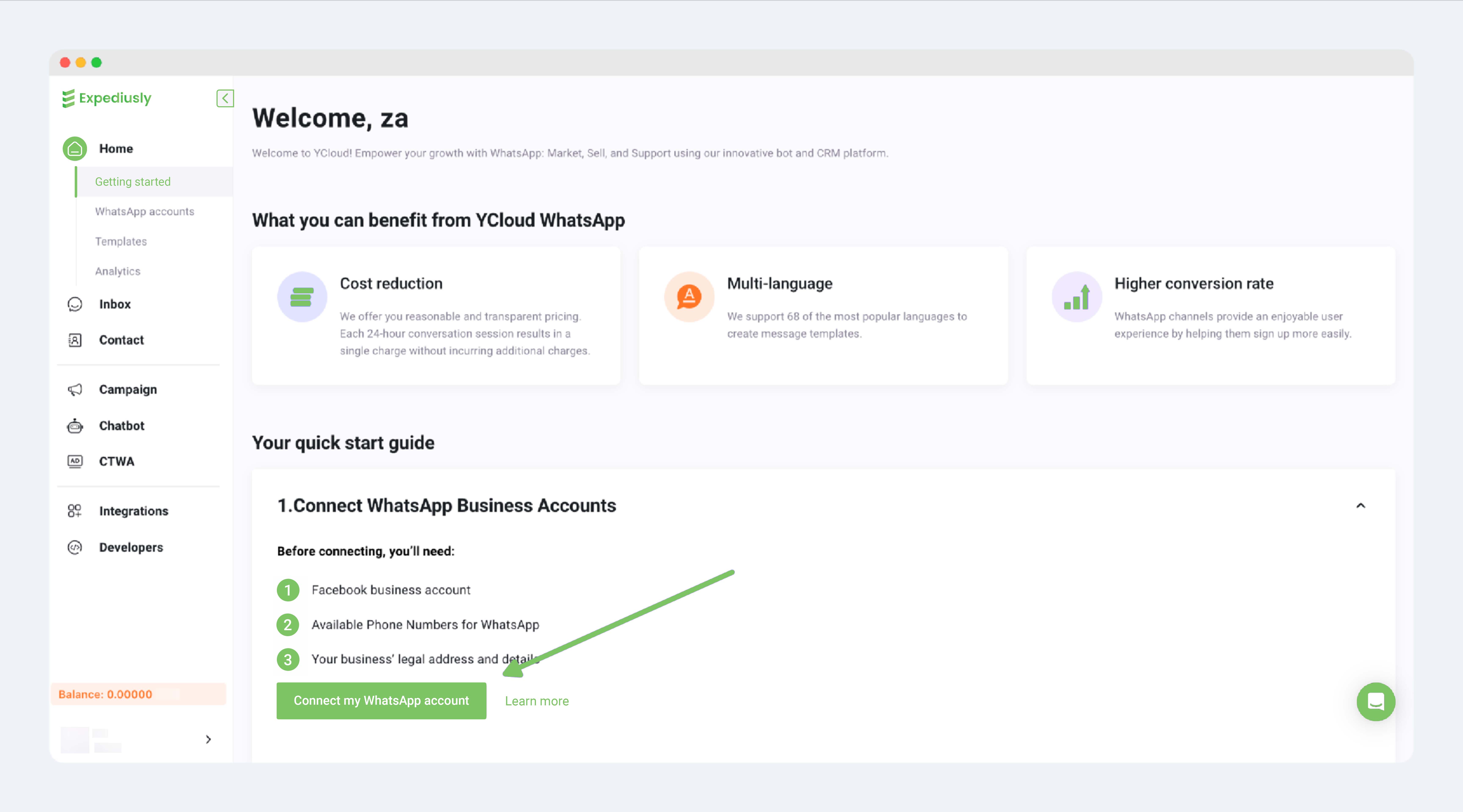
Create WhatsApp api account entry
Step 2.2: Log in to the Facebook Account
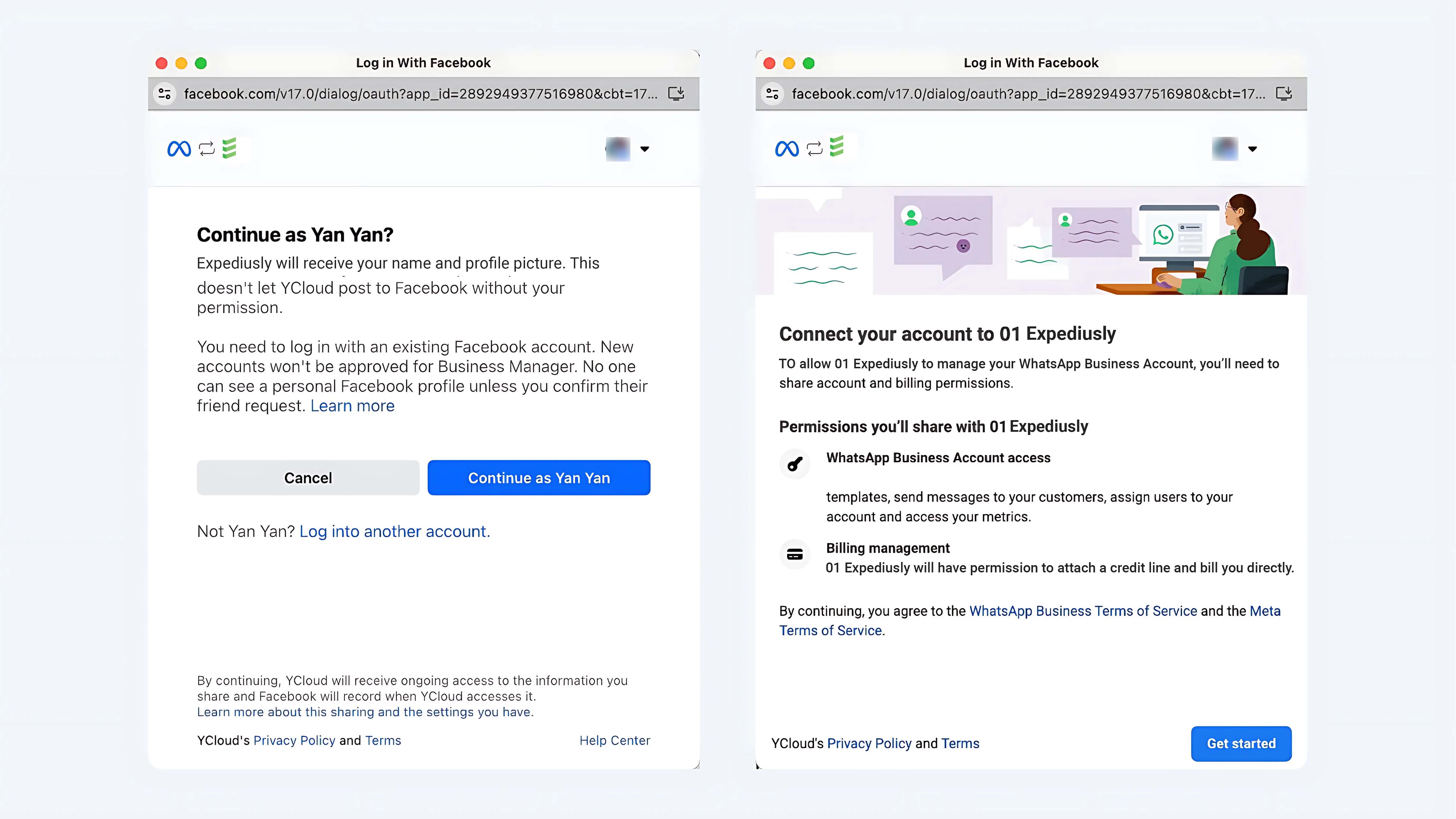
Log in with the administrator's Facebook account for the target BM and agree to the terms.
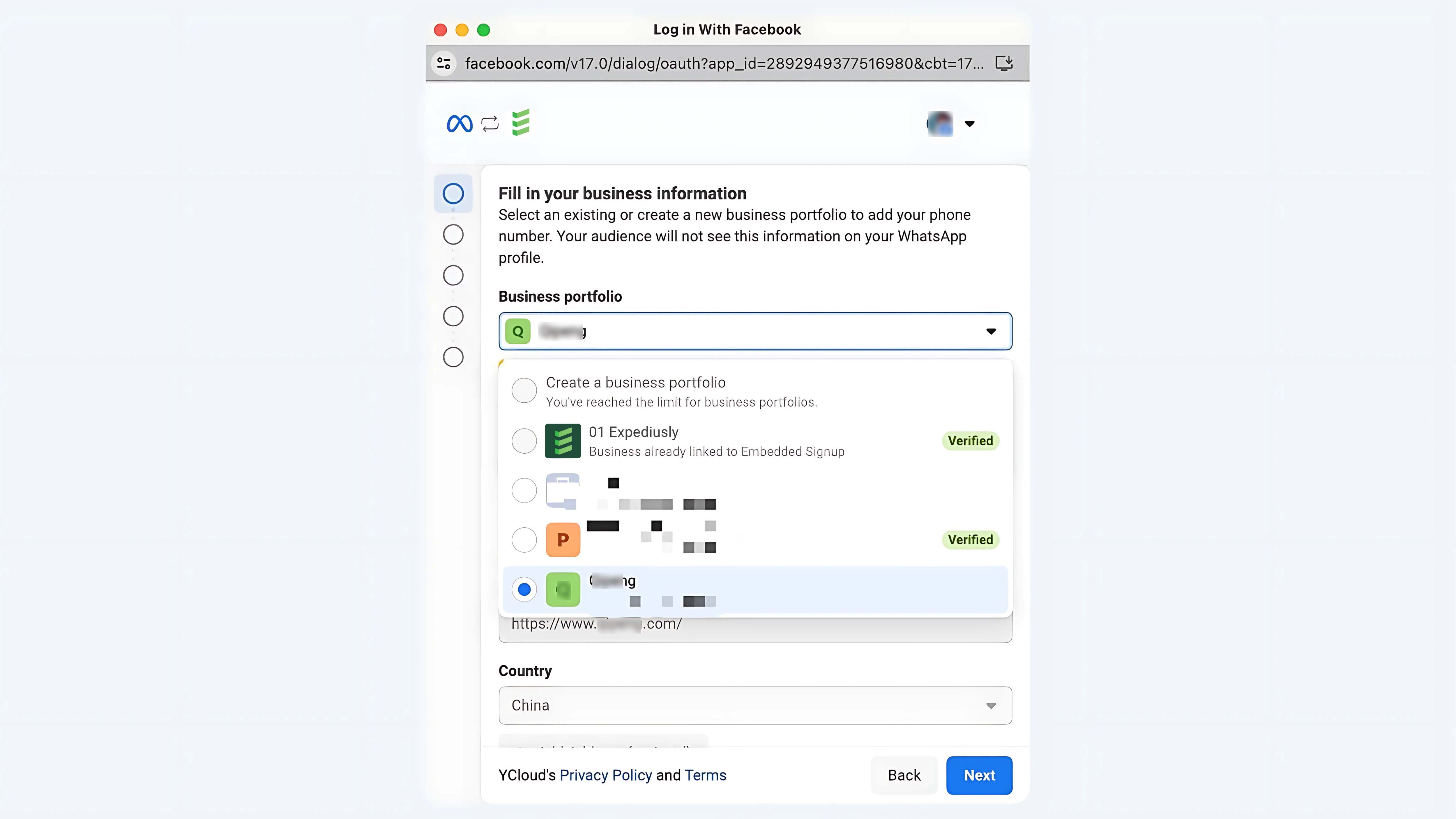
Step 2.3: Choose BM Account
In the first step of the pop-up, select the existing BM account from the Business portfolio.
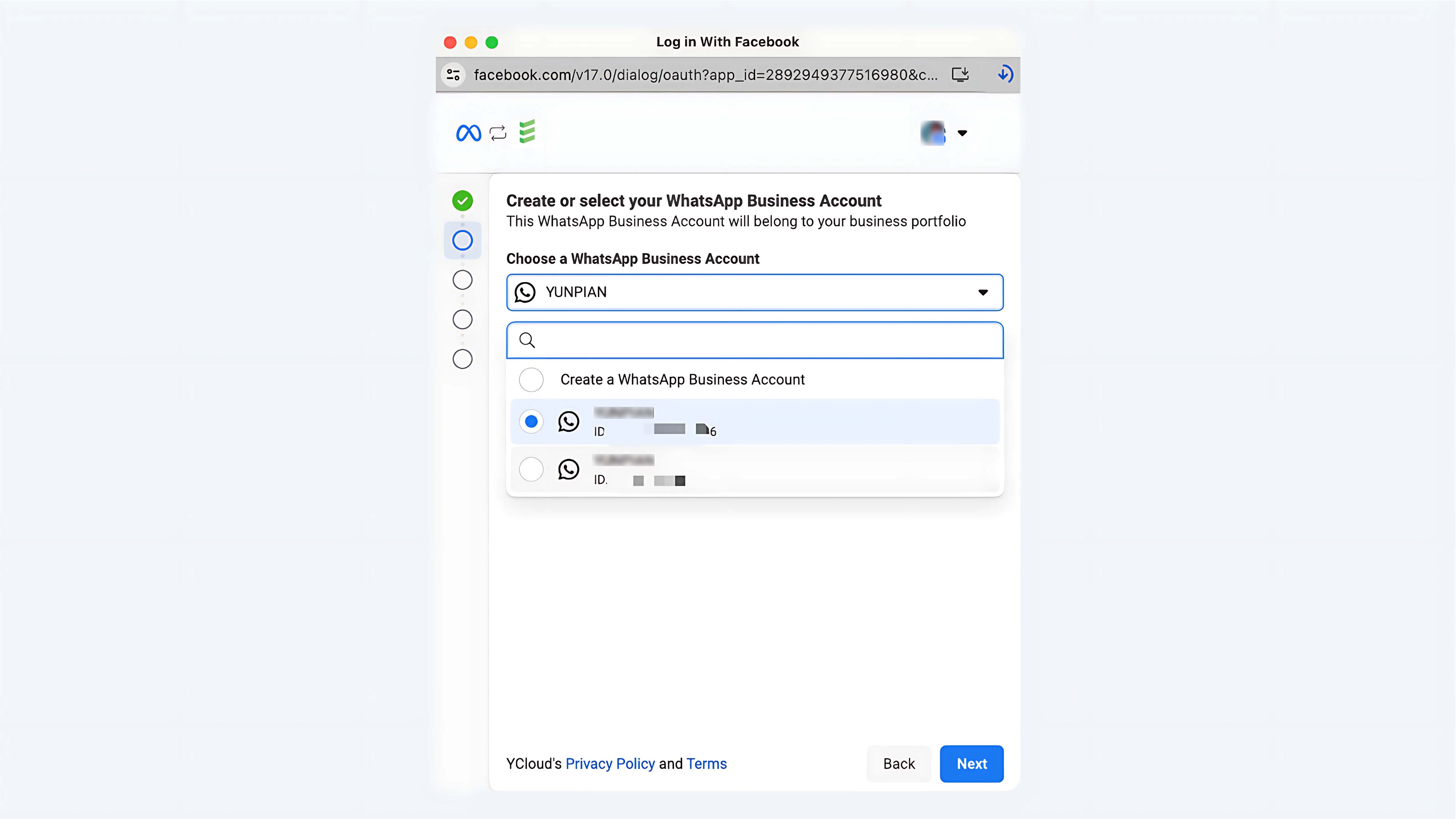
Step 2.4: Choose the Target WABA Account
Select the target WABA account (the new WABA account to which the number will be migrated) from the dropdown.
Step 2.5: Set the Number's Attributes
Here, enter the name of the number to be migrated as the Display name. After entering, proceed to the next step.
image
Step 2.6: Bind the Number to Be Migrated
Enter the number and you will see a prompt indicating that this number belongs to another service provider. Confirm it and click Next.
image
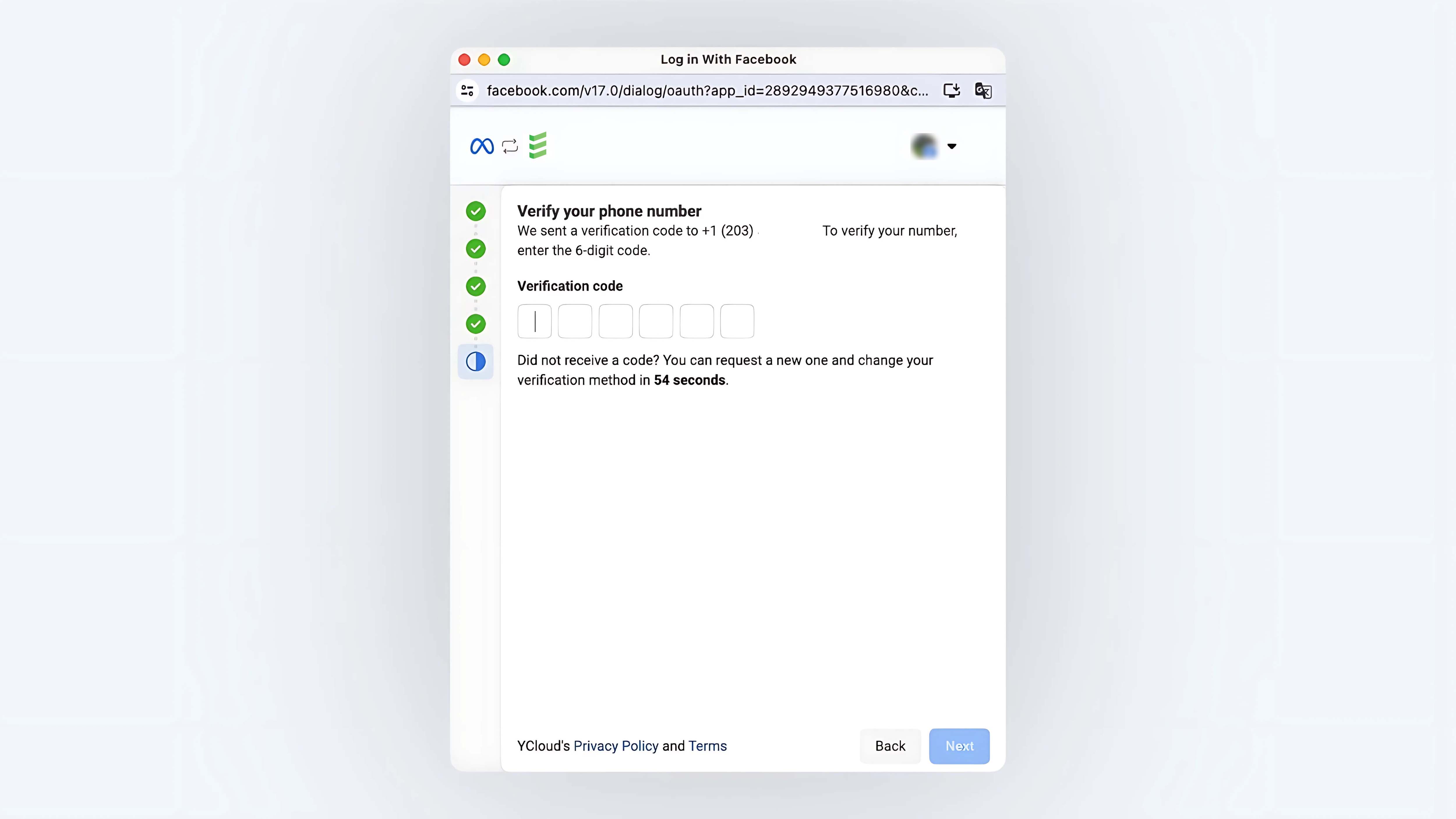
Step 2.7: Verification Code Check
Enter the received verification code to complete the check.
Step 2.8: Complete connection
After the binding is successful, be sure to click the Finish button in the lower right corner to close the pop-up.
image
Step 2.9 Binding Success
After closing the pop-up, Expediusly will start connecting your number, and the page will show Connected upon successful binding.
If the binding fails, you can contact online customer service for consultation.
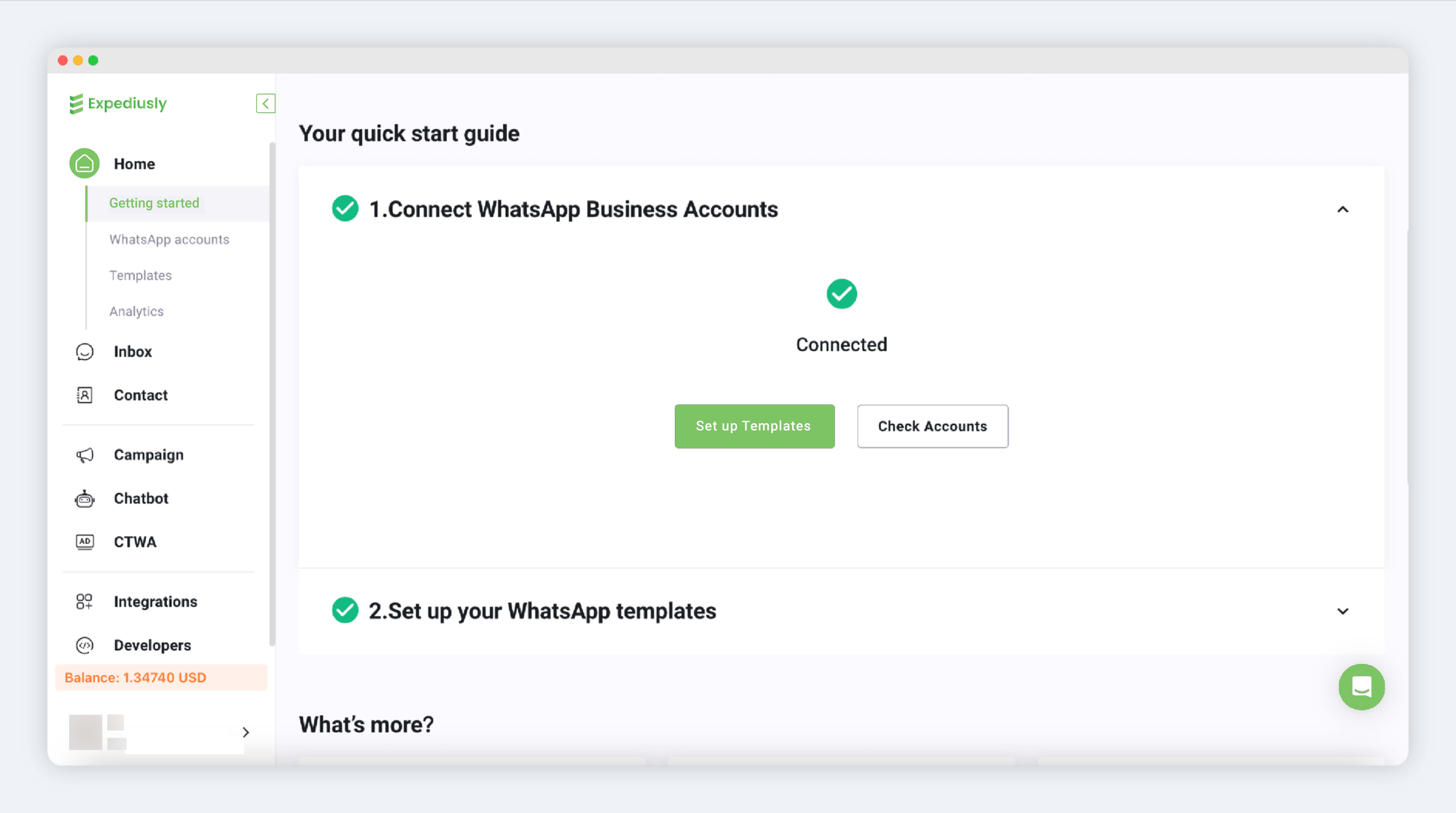
Connected
After successful migration, please confirm in the WhatsApp accounts.